
What all the buttons in your ChatGPT sidebar actually do
If you use ChatGPT even a little, you’ve probably noticed the sidebar keeps growing.
Here’s what each button means, why it exists, and when you’d actually use it, explained like you’re a normal human, not a tech person.
The ChatGPT icon
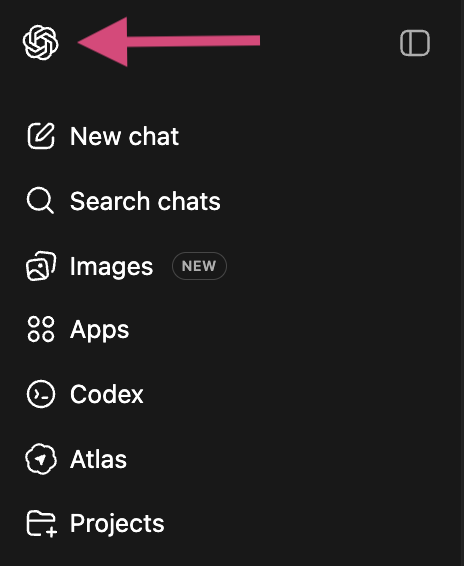
What it is: The main ChatGPT button.
Why it’s helpful: It’s basically the “home” button. Clicking it brings you back to the main ChatGPT experience and sidebar.
When you’d use it: If you’ve clicked around, opened things, or just want to reset your view and get your bearings.
(Note: This is your personal ChatGPT agent. I don’t suggest using this GPT for business purposes. Instead, I suggest creating a new ChatGPT for business or find one that pertains to your needs in “Explore GPT’s”, which is a helpful tool to find pre-trained GPT’s such as “marketing”, “business lingo”, etc. This will help keep your personal and business GPT’s separate, which is important for language and training.)
Think of it like: “Take me back to ChatGPT.”
New chat
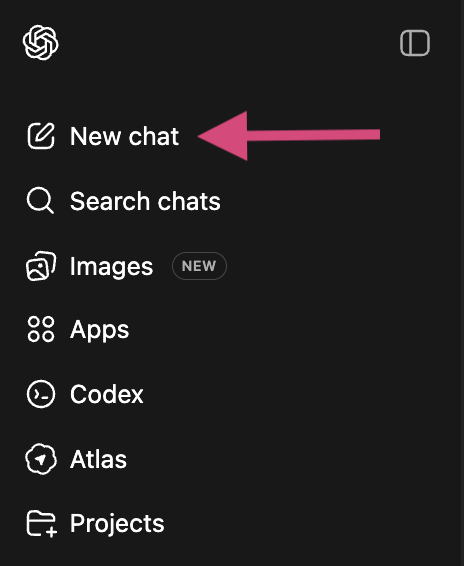
What it is: Starts a brand-new conversation.
Why it’s helpful: Each chat keeps its own context. A new chat means you’re starting fresh without old topics bleeding into new ones.
When you’d use it: Any time you change topics.
Example: You were talking about skincare. Now you want to plan a trip. Start a new chat so things don’t get mixed together.
Search chats
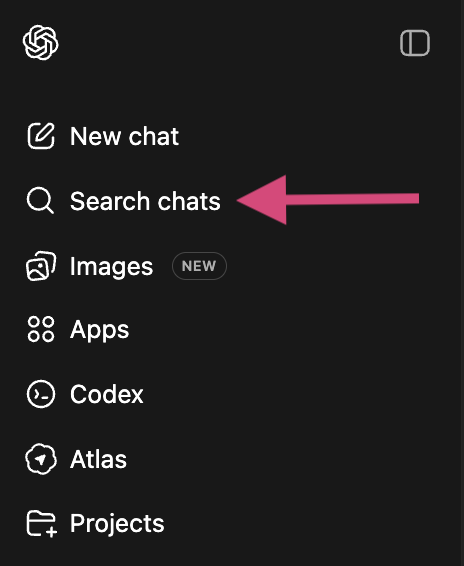
What it is: A search bar for your past conversations.
Why it’s helpful: You don’t have to remember where you talked about something, just that you did.
When you’d use it: When you think: “I know I already asked this…”
Example: Search “resume” and instantly find that conversation instead of retyping everything.
Images
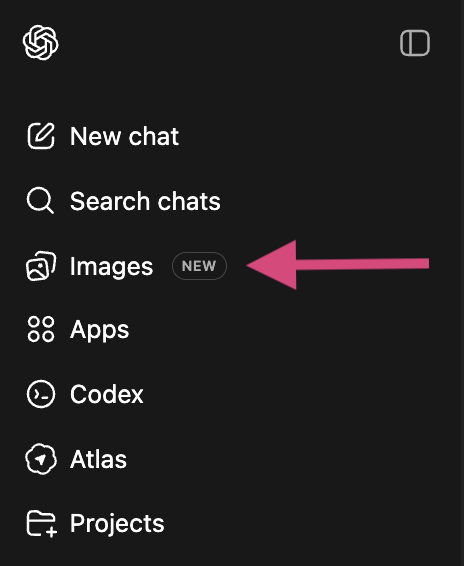
What it is: A place focused on AI-generated images.
Why it’s helpful: It separates image creation from regular chat, so it’s easier to
generate images
revisit images you’ve made
focus visually instead of text-only conversations
When you’d use it: When you want to create or explore images without mixing them into a normal chat.
Example: You’re generating art, illustrations, or concept images and want them all in one place.
Apps
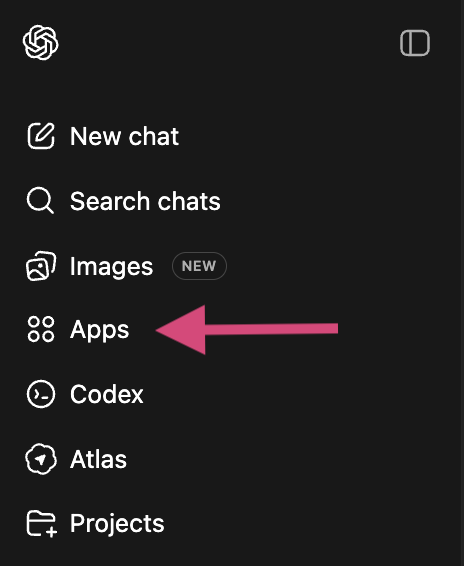
What it is: Apps are specialized tools inside ChatGPT that are designed to do one specific job really well. Instead of ChatGPT just talking to you, an app gives you a guided experience for a particular task.
Example app : “Quiz Generator”. (This is a common type of app people actually use.)
What it does: The “Quiz Generator” app helps you
turn information into quizzes
test your knowledge
practice learning in a structured way
Why you’d use this app inside ChatGPT: Because it’s interactive and adaptive. ChatGPT already knows the context, the app just adds structure. Unlike a random quiz website
You can tell it what you’re learning
You can ask it to adjust difficulty
You can ask follow-up questions when something doesn’t make sense
When you’d use it: When you want to learn or practice, not just read answers.
Example: You’re studying for an exam or learning something new and say: “Quiz me on this topic, but explain the answer if I get it wrong.” The app handles the format, and ChatGPT handles the explanation.
The simple way to think about Apps
Regular chat = conversation
Apps = tools with guardrails
Apps are helpful when:
you want structure
you want repeatable steps
you don’t want to reinvent the workflow every time
One-sentence takeaway: Apps let ChatGPT stop being just a chat box and start acting like a tool designed for a specific job.
Codex
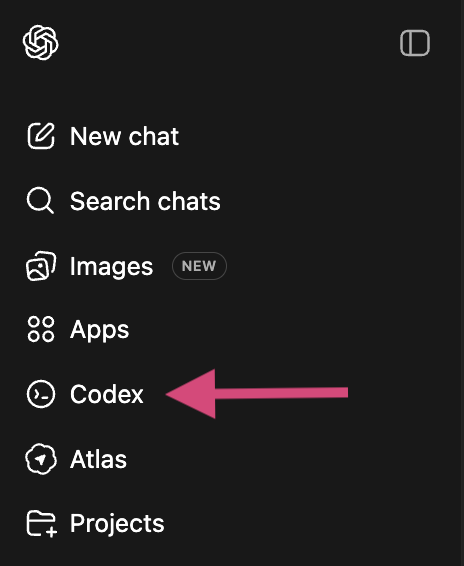
What it is: A code-focused version of ChatGPT.
Why it’s helpful: Codex is more literal, structured, and precise than regular chat. It’s better at understanding and explaining code.
When you’d use it: When you’re working with programming or technical logic.
Example: You paste in code and ask
“What does this do?”
“Why is this breaking?”
“Can you clean this up?”
Atlas
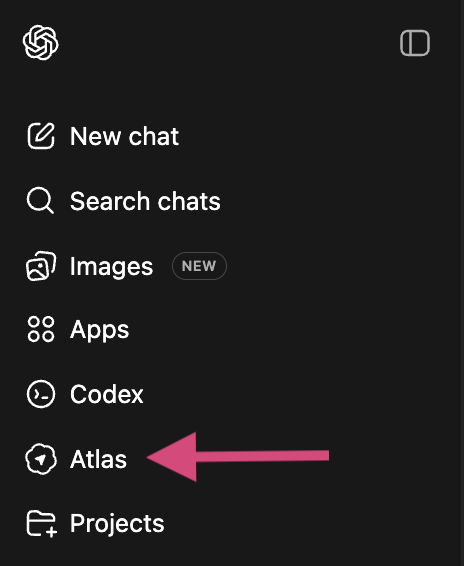
What it is: Atlas is a version of ChatGPT designed to help you understand things you’re actively looking at, especially on the web. Regular ChatGPT is great for conversation and ideas. Atlas is great for interpretation, explanation, and context. Think of it more like a browser than a chatbot.
How Atlas is different from regular ChatGPT:
Regular ChatGPT
Responds based on what you type
Great for brainstorming, writing, asking questions
Works best when you explain the situation yourself
Atlas
Is built to work alongside content
Helps you make sense of articles, webpages, and online information
Focuses less on creativity and more on clarity and accuracy
Think of it like this: ChatGPT talks with you, whereas Atlas helps explain what you’re looking at.
Why you’d use Atlas instead of regular ChatGPT when:
You don’t want to paraphrase or explain everything yourself
You want help understanding something specific and external
You’re reading something confusing, technical, or dense
Atlas is better when the problem is: “I’m staring at this thing, and I don’t fully get it.”
Example 1: Reading an article
You’re halfway through a long article and thinking: “What is the author actually saying here?” Atlas can summarize it, explain key points, and clarify intent.
Example 2: Technical or policy content
You’re reading terms, documentation, or rules and want:
plain-English explanations
key takeaways
what actually matters vs what doesn’t
Example 3: Fact-checking or understanding claims
You want help evaluating information instead of just generating new text.
Why this matters for non-technical users: Atlas reduces the mental load.
Instead of:
copying and pasting huge chunks
trying to explain what you’re confused about
guessing what questions to ask
You use Atlas to say: “Help me understand this.”
The simple takeaway
ChatGPT → conversation, ideas, creativity
Atlas → understanding, explanation, interpretation
You use Atlas when your brain feels full and you just want things to make sense.
Projects
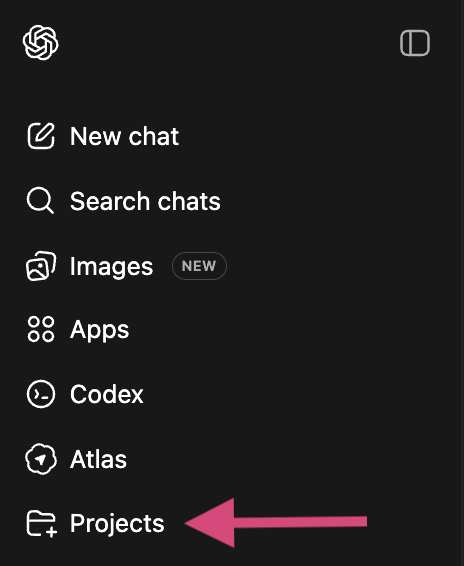
What it is: A way to organize ongoing work into focused spaces.
Why it’s helpful: Some things aren’t one-off questions. Projects keep everything related to the same goal together over time.
When you’d use it: When something takes more than one conversation.
Example: A project for
writing a blog
learning a language
building a business idea
working on a holiday marketing campaign
The easiest way to remember all of this
Top icon → home
New Chat → start fresh
Search Chats → find old conversations
Images → create and manage AI images
Apps → specialized tools
Codex → coding help
Atlas → understanding online content
Projects → long-term workspaces
You don’t need to use everything. Most people won’t need all these features, anyway.
The sidebar isn’t there to overwhelm you. Think of ChatGPT less like a single box and more like a workspace with different rooms. You just walk into the one you need.
